
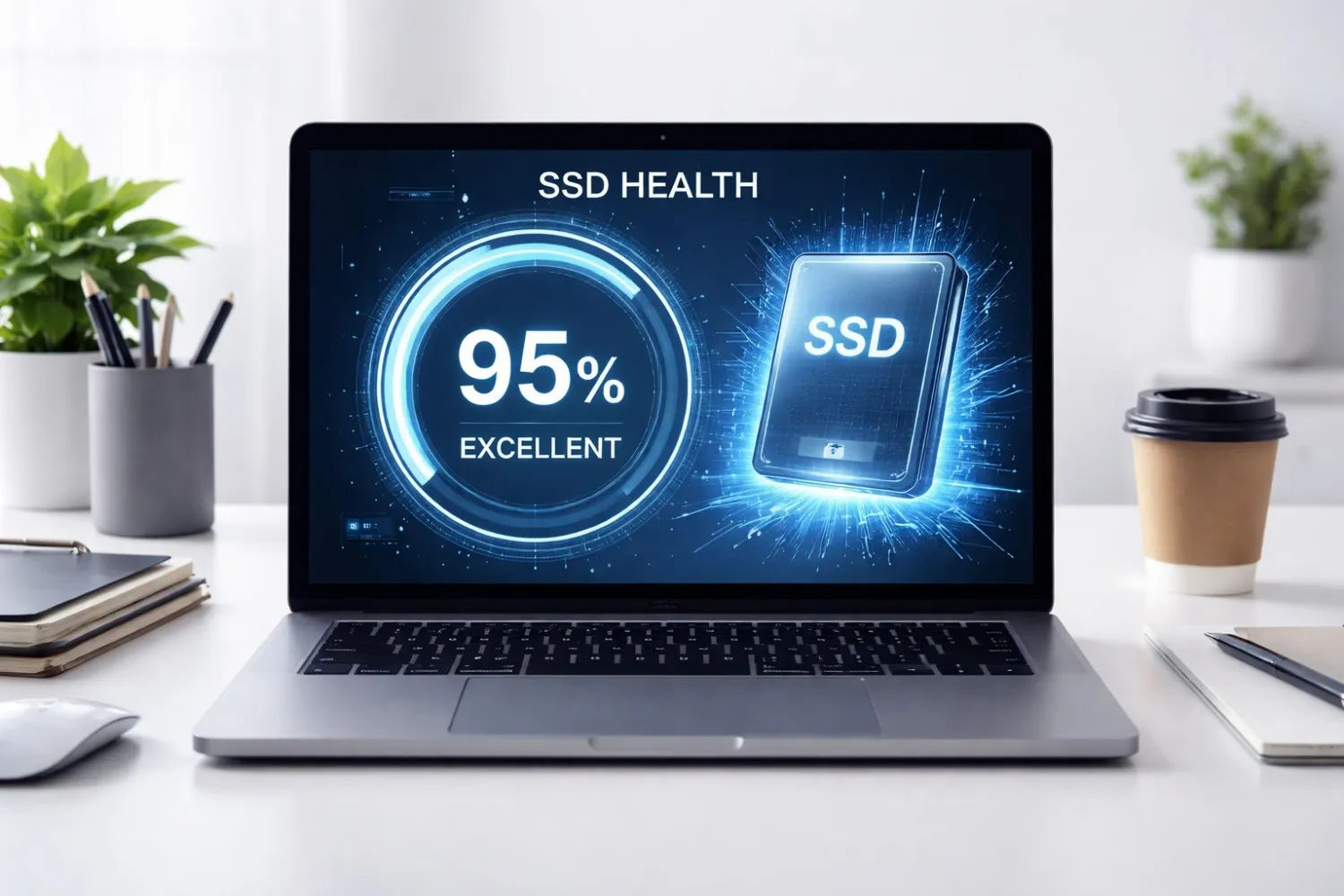
Introduction
In today’s digital world, almost every laptop and computer uses an SSD (Solid State Drive) instead of a traditional hard disk. SSDs are faster, more reliable, and improve overall system performance. But just like any other hardware, SSDs also have a limited lifespan.
Many people think SSDs never fail, but that’s not true.
Over time, SSD performance can decrease, and if you don’t monitor its health, it can fail suddenly — leading to data loss.
So the important question is:
How to check SSD health?
In this detailed guide, you’ll learn:
- What SSD health means
- How to check SSD health (step-by-step)
- Best free tools
- Warning signs of SSD failure
- Tips to increase SSD life
What is SSD Health?
SSD health refers to the overall condition and lifespan of your SSD.
Unlike HDDs, SSDs don’t have moving parts. Instead, they use flash memory to store data. Every SSD has a limited number of write cycles.
Once these cycles are used up, the SSD starts degrading.
Key SSD Health Indicators
- Drive lifespan percentage
- Total data written (TBW)
- Read/write errors
- Temperature
- Bad sectors (rare but possible)
Why Checking SSD Health is Important
Checking SSD health regularly helps you:
- Avoid sudden data loss.
- Monitor performance
- Plan upgrades in advance
- Improve system speed
- Detect issues early

How to Check SSD Health (Step-by-Step Methods)
There are multiple ways to check SSD health. Let’s explore the easiest ones.
1. Check SSD Health Using Built-in Windows Tool (CMD Method)
This is the simplest method.
Steps:
- Press Windows + R
- Type cmd
- Run this command:
wmic diskdrive get status
Result:
- If it shows OK → SSD is healthy.
- If it shows anything else → problem may exist.
Limitation:
This method only gives basic info, not detailed health.
This method only gives basic info, not detailed health.
2. Use CrystalDiskInfo (Best Free Tool)
This is one of the most popular tools to check SSD health.
Steps:
- Download from the official website
crystalmark.info - Install and open
- Check:
- Health Status (%)
- Temperature
- Total Host Writes
Health Status Meaning
| Good | SSD is healthy |
| Caution | Warning signs |
| Bad | Replace immediately |
3. Use Manufacturer Software
Most SSD brands provide their own tools:
| Samsung | Samsung Magician |
| WD | WD Dashboard |
| Kingston | Kingston SSD Manager |
These tools provide:
- Accurate health status
- Firmware updates
- Performance optimization
4. Check SSD Health in BIOS
You can also check SSD health in BIOS.
Steps:
- Restart PC
- Press F2 / Delete
- Open storage section
Not all systems show health data here.
5. Use PowerShell (Advanced Users)
Command:
Get-PhysicalDisk
This shows:
- Health status
- Operational status

Signs Your SSD is Failing
Even before checking tools, your SSD gives warning signs:
- Slow performance
- Frequent crashes
- Files not saving
- System freezing
- Blue screen errors
If you notice these → check immediately.
SSD Lifespan Explained
SSD lifespan is measured using:
TBW (Terabytes Written)
Example:
| 256GB | 100 TBW |
| 512GB | 300 TBW |
| 1TB | 600 TBW |
How to Increase SSD Life
Follow these simple tips:
1. Avoid Full Storage
Keep at least 20% space free.
2. Enable TRIM
Improves performance
3. Avoid Excess Writes
Don’t constantly transfer heavy files.
4. Update Firmware
Use official tools
5. Use SSD for OS Only
Avoid storing unnecessary data.
SSD vs HDD (Quick Comparison)
| Speed | Fast | Slow |
| Lifespan | Limited writes | Mechanical wear |
| Noise | Silent | Noisy |
| Reliability | High | Medium |

Best Free SSD Health Tools (2026)
Here are the top tools you can use:
- CrystalDiskInfo
- Samsung Magician
- WD Dashboard
- Hard Disk Sentinel
- Smartmontools
Common SSD Myths
Myth 1: SSD never fails
Reality: It does fail after write cycles
Myth 2: Defragmenting improves SSD
Reality: It reduces lifespan
Myth 3: SSD lasts forever
Reality: Limited lifespan
When Should You Replace an SSD?
Replace SSD if:
- Health below 20%
- Frequent crashes
- Data corruption
- Slow performance
Conclusion
Checking SSD health is very important in today’s digital life. SSDs are fast and reliable, but they don’t last forever.
By regularly checking your SSD health, you can:
- Prevent data loss
- Maintain performance
- Extend lifespan
The best part?
It only takes a few minutes.
Final Tips
- Check SSD health once a month.
- Always keep a backup
- Use trusted tools
- Monitor performance
Final Thought
Technology is evolving fast, and SSDs are becoming the standard storage device. Taking care of your SSD is no longer optional — it’s essential.
Start monitoring your SSD today and keep your data safe.